Why Does a Security Camera Make Sounds Turn On or Send Alerts by Itself?
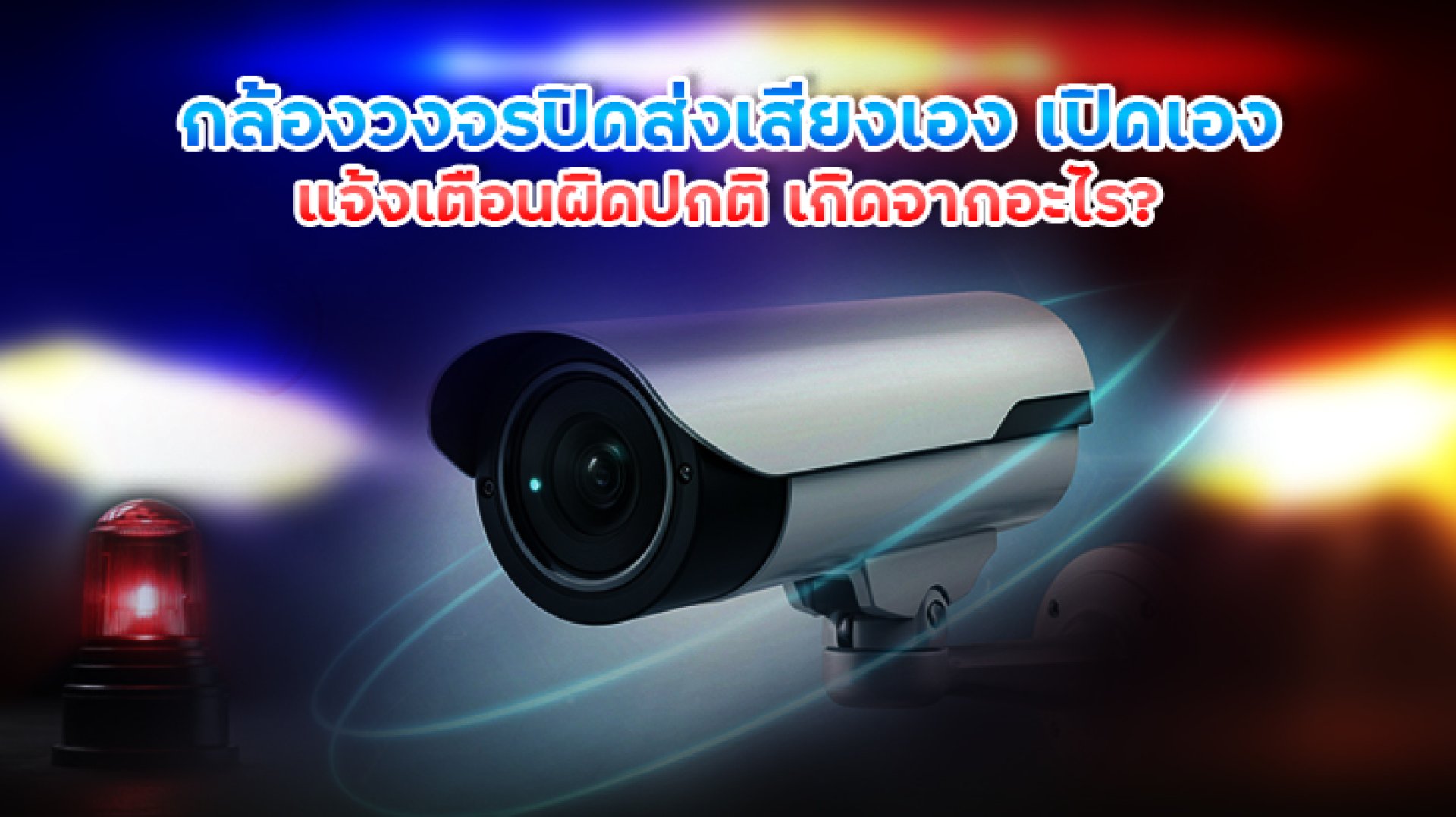
If your security camera makes sounds by itself, starts talking, activates its speaker, or sends unexpected notifications even when nobody appears to be around, it can be quite alarming. This is especially common with modern security cameras equipped with features such as AI Detection, Motion Detection, Two-way Audio, Siren, and smart alerts.
However, before assuming that the security camera is damaged or that someone has gained unauthorized access, these behaviors may simply be caused by camera settings, motion detection, object detection, or automatic alert functions.
This article explains why a security camera may make sounds, turn on, or send alerts by itself, what you should check first, and how to determine whether the problem is related to settings, detection features, or the camera hardware.
Why Does a Security Camera Make Sounds by Itself?
The phrase "makes sounds by itself" can refer to several different camera functions. Before troubleshooting, try to identify exactly what kind of sound you are hearing: voice, siren, warning sound, or speaker audio.
Common causes include:
- Siren or alarm sounds triggered by detection
- Smart Deterrence being enabled
- Motion or human detection being triggered incorrectly
- A Custom Voice Alarm being configured
- Someone using Two-way Audio through the mobile app
- Motion sensitivity being set too high
- A temporary issue with the app or camera system
- Multiple devices having access to the same camera
1. The Siren or Alarm Function May Be Enabled
Modern security cameras are not limited to video recording. Some models can automatically play an alarm sound when they detect an event that matches predefined conditions, such as a person or movement.
For example, some IMILAB camera models support Smart Deterrence, which can use a siren, flashing light, or customized voice alert to help deter unwanted activity when motion is detected. The exact functionality depends on the camera model.
Therefore, if your security camera makes a sound by itself, the first thing to check is the settings related to Alarm, Siren, Deterrence, or audio alerts.
How to Check the Settings
- Open the app used to control your security camera.
- Select the camera experiencing the issue.
- Open Settings.
- Check Motion Detection or Detection settings.
- Check Alarm, Siren, or Deterrence settings.
- Check whether an automatic sound alert has been configured.
The exact menu names may vary depending on the camera model and app version, so always check the user manual for your specific device when necessary.
2. The Camera May Be Detecting People or Movement Incorrectly
Another common reason is that the camera's detection system interprets something as an event that requires an alert, even though the user does not consider it unusual.
Examples include:
- Tree branches or leaves moving in the wind
- Shadows moving across the camera view
- Insects flying close to the lens
- Vehicle headlights shining toward the camera
- Changes in sunlight or weather conditions
- Pets moving through the detection area
- The camera being aimed at an area with constant movement
If the camera is configured to respond to every motion event, it may generate frequent alerts.
Cameras with AI Detection can provide more advanced event classification on supported models, such as distinguishing people and vehicles from general movement. However, detection capabilities and accuracy depend on the specific camera model and its software.
3. Motion Detection Sensitivity May Be Too High
If your security camera sends alerts too frequently, check the Motion Detection sensitivity level.
When sensitivity is set too high, the camera may respond to relatively small movements within the detection area, including leaves, shadows, pets, or other environmental changes.
A better solution is to adjust the detection area and sensitivity according to the installation environment rather than allowing the camera to monitor every part of the image equally.
Example: Setting a Detection Area
Suppose a camera is installed at the front of your house and you mainly want to monitor the front door. You can define the Detection Area around the entrance and walkway instead of monitoring the entire street.
This can reduce unnecessary alerts caused by vehicles, pedestrians, or movement in areas that are not relevant to your security needs.
4. The Camera May Be Speaking Because of Two-way Audio
Security cameras equipped with Two-way Audio can receive sound from the camera's surroundings and transmit audio from a smartphone back through the camera's speaker.
This feature is useful for communicating with someone at the front door, delivery personnel, or family members while you are away.
Therefore, if you suddenly hear a voice coming from the camera, check whether the Two-way Audio function has been activated in the mobile app. You should also check whether another device with access to the camera is currently using the audio function.
Many IMILAB security cameras support Two-way Audio, although the exact implementation and available features vary by model.
5. Is Someone Using the Camera From Another Device?
If you have checked the camera settings but the security camera continues to make sounds by itself, check the account and devices that have access to the camera.
This is particularly important in households where several people use the same account. Another person may be viewing the live feed, activating Two-way Audio, or changing settings from another smartphone.
Things to check include:
- The account connected to the camera
- Devices authorized to access the camera
- Family members who have access
- Account security settings
- Your account password
If you notice anything unusual, change the account password and review the devices that have access. Avoid reusing the same password across important services.
6. Unexpected Alerts May Be Caused by App Notifications
Sometimes the camera itself is functioning normally, but what you are seeing is actually a notification generated by the mobile app.
Modern smartphone operating systems provide permission controls for apps, including access to features such as the microphone, camera, and notifications.
On Android, you can review an app's permissions through Settings > Apps > select the app > Permissions. The exact menu structure may vary depending on the smartphone manufacturer and Android version.
Google states that Android provides controls for managing app permissions, including access to the microphone and notifications, allowing users to control which apps can use these features.
7. A Security Camera Turning On Does Not Necessarily Mean It Is Broken
The phrase "turns on by itself" can describe several different situations, so it is important to identify the exact behavior.
| Symptom | What to Check |
|---|---|
| The camera makes an alert sound | Check Siren, Alarm, and Smart Deterrence settings |
| The camera speaks or plays audio | Check Two-way Audio and Custom Voice Alarm |
| The app sends frequent notifications | Check Motion Detection and AI Detection |
| The camera rotates by itself | Check Auto Tracking or PTZ functions |
| The camera restarts after a power interruption | Check the power supply and automatic restart behavior |
| The app appears to activate notifications | Check notification settings and app permissions |
8. The Camera Rotating by Itself Does Not Always Mean Someone Is Controlling It
For cameras equipped with PTZ or Auto Tracking, the camera can automatically rotate to follow a detected person or moving object.
Therefore, if your security camera rotates by itself, check whether Auto Tracking or another automatic tracking feature is enabled.
For example, some cameras in the IMILAB EC6 Series support pan and tracking functions. Depending on the model, AI-based detection can identify people or vehicles, while Auto Tracking can follow detected movement.
How to Quickly Check a Security Camera That Makes Sounds by Itself
If you encounter this problem, do not immediately reset the camera. First, work through the following checklist:
- Identify the sound Is it a voice, siren, or notification sound?
- Check Motion Detection Look for unusually frequent detection events.
- Check AI Detection See whether people, vehicles, or other objects are being detected.
- Check the Detection Area Make sure the camera is not monitoring an unnecessarily large area.
- Check Siren / Alarm Temporarily disable the feature for testing.
- Check Two-way Audio Make sure another device is not using the camera's speaker.
- Check Auto Tracking Especially if the camera rotates by itself.
- Check the account and authorized devices that can access the camera.
- Check the app and camera firmware for available updates.
- Restart the camera if no configuration issue is found.
How Can You Reduce Unnecessary Security Camera Alerts?
The goal of a good security notification system is not to generate as many alerts as possible. Instead, it should notify you when an event is actually important.
If a camera sends notifications constantly, users may eventually develop notification fatigue and become less likely to notice an important alert.
Ways to reduce unnecessary notifications include:
- Define a specific Detection Area
- Adjust Motion Sensitivity according to the environment
- Use AI Human Detection if supported
- Set specific notification schedules
- Disable notifications for events that are not important
- Adjust the camera position to avoid areas with constant movement
What Should You Look for in a Security Camera for More Accurate Alerts?
If you are choosing a security camera for home security, do not focus only on resolution such as 2K, 3K, or 4K. You should also consider the detection and notification features.
Useful features may include:
- AI Human Detection Helps distinguish people from general movement on supported models.
- Vehicle Detection Detects vehicles on supported models.
- Motion Detection Detects movement within the camera's monitored area.
- Two-way Audio Allows communication through the camera.
- Smart Deterrence Uses sound or lights to help deter unwanted activity on supported models.
- Auto Tracking Automatically follows detected movement on supported models.
- Night Vision Helps provide visibility in low-light and nighttime conditions.
For example, some IMILAB EC6 Series models include combinations of AI Detection, Two-way Audio, Smart Deterrence, and Night Vision. The available features vary by model.
Conclusion: What Should You Check When a Security Camera Makes Sounds by Itself?
A security camera that makes sounds, turns on, or sends unexpected alerts does not necessarily mean that the camera is defective. Many cases are related to smart features and configuration settings.
The first settings to check are Motion Detection, AI Detection, Siren, Smart Deterrence, Two-way Audio, Auto Tracking, and Notifications. You should also review the account and devices that have permission to access the camera.
If the problem continues after adjusting the settings, check the camera firmware, mobile app, and power supply. If necessary, reset the device or contact the manufacturer's support team for the specific model.
Frequently Asked Questions (FAQ)
Why does my security camera make sounds by itself?
It may be related to Siren, Alarm, Smart Deterrence, Custom Voice Alarm, or Two-way Audio. Automatic detection and alert settings can also cause the camera to respond to detected events.
Why does my security camera send alerts when nobody is there?
Motion Detection may be detecting movement from leaves, shadows, pets, insects, vehicles, or changing lighting conditions. Check the Detection Area and sensitivity settings, as well as AI Detection if supported.
What should I do if my security camera talks by itself?
First determine whether the sound is coming from Two-way Audio, a Siren, or a Custom Voice Alarm. Then check whether another device with permission to access the camera is using the audio function.
Why does my security camera rotate by itself?
If the camera supports PTZ, it may be using Auto Tracking to follow a detected person or moving object. Check the camera's automatic tracking settings.
How can I stop my security camera from sending too many notifications?
Try reducing the Detection Area, adjusting Motion Sensitivity, setting notification schedules, and using AI Detection where available.
Related Articles
- Why Does a Security Camera Go Offline? Basic Troubleshooting Guide
- Why Can't My Security Camera See at Night?
- What Is Auto Tracking in a Security Camera?
- What Is a Dual-Lens Security Camera? How Is It Different From a Single-Lens Camera?
- What Is AI Human Detection in a Security Camera?