CCTV Camera Cannot Be Viewed on Phone but Is Still Online: What Causes It?
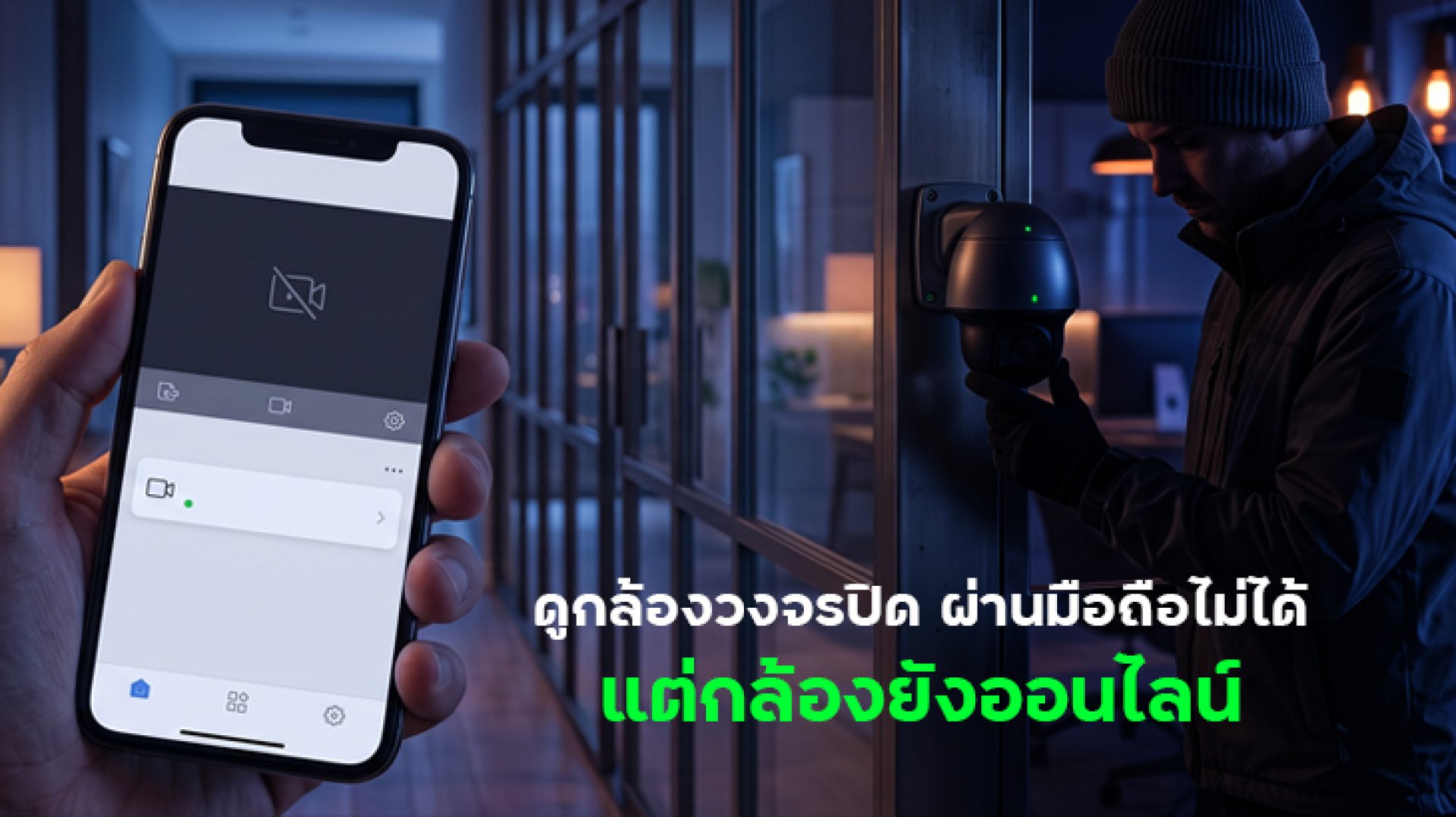
Have you ever opened your CCTV app and found that the camera still shows as Online, but you cannot view the live feed? The screen may keep loading, freeze, or fail to connect to the camera.
This does not necessarily mean that the camera is broken. An Online status means the camera can still connect to the network or service, but the Live View connection between the camera and your smartphone may still have a problem.
In this article, we will explain why a CCTV camera cannot be viewed on a phone even though it is still Online, along with practical steps you can try before resetting the camera or contacting a technician.
What Does It Mean When a CCTV Camera Is Online but Cannot Be Viewed?
The Online status does not necessarily mean that Live View will work normally. It mainly indicates that the camera is still connected to the network.
Viewing a live camera feed on your phone involves several connections, including:
- The camera must be connected to Wi-Fi or another network.
- The router must be able to send and receive Internet data.
- The CCTV app must be working and connected to your account.
- Your smartphone must have a working Internet connection.
- The service used to deliver the Live View must be able to establish a connection.
Therefore, it is possible for a CCTV camera to remain Online while the Live View cannot be accessed.
Why Can't I View My CCTV Camera on My Phone Even Though It Is Online?
1. Your Phone's Internet Connection Has a Problem
Before troubleshooting the camera, check your smartphone first. Viewing a camera remotely requires an active Internet connection.
If your phone is connected to an unstable Wi-Fi network or your mobile data connection is weak, the app may fail to load the camera feed even though the camera itself remains Online.
How to check: Try opening a website or another app that requires an Internet connection. If several services are slow or unavailable, the problem may be with your phone's Internet connection rather than the camera.
2. The Camera Has Wi-Fi but the Connection Quality Is Poor
A camera may remain Online even when its Wi-Fi connection is not stable enough for smooth video streaming.
If the camera is far from the router, there are several walls between them, or many devices are using the same Wi-Fi network, Live View may take longer to load, freeze, or fail to connect.
Check whether the problem occurs mainly when many devices are using the network at the same time.
3. The Mi Home App May Have a Temporary Problem
If the camera is Online but Live View does not work, close the app completely and open it again. Sometimes the problem can be caused by a temporary app or connection session issue.
If the problem continues, check whether the app is updated to the latest version. You can also try signing out and signing in again.
4. The Network You Are Using May Restrict Certain Connections
Some networks, such as public Wi-Fi, office networks, school networks, or networks with additional security restrictions, may limit certain types of data connections.
An easy way to test this is to switch from Wi-Fi to mobile data and try opening the camera again.
If Live View works with mobile data but not with the original Wi-Fi network, the problem may be related to the network your phone is connected to.
5. The Router May Have a Temporary Network Problem
A router may still provide Internet access while experiencing problems managing certain network connections. This can affect the transmission of camera video even when the camera itself has not gone Offline.
Try restarting the router, wait for the connection to return, and then check whether the camera comes back Online before testing Live View again.
This is a simple troubleshooting step and does not require resetting the camera to factory settings.
6. Too Many Devices Are Using the Internet at the Same Time
If your home network has Smart TVs, smartphones, computers, game consoles, and multiple CCTV cameras using the Internet simultaneously, the available bandwidth may be reduced.
Streaming video, downloading large files, or uploading large amounts of data can also affect the performance of CCTV Live View.
7. Check the App and Smartphone Settings
In some cases, the problem may not be related to the network at all. Smartphone settings, app permissions, or restrictions on background activity can affect how an app works.
Check your phone settings to make sure the CCTV app is allowed to use the network and operate normally.
How to Fix a CCTV Camera That Is Online but Cannot Be Viewed on a Phone
Start with the simplest checks first. There is usually no need to immediately reset the camera.
- Check whether your smartphone has a working Internet connection.
- Close and reopen the CCTV app.
- Switch between Wi-Fi and mobile data.
- Check whether the app is updated.
- Check the Wi-Fi signal around the camera.
- Reduce the number of devices using the network at the same time.
- Restart the router.
- Wait for the camera to return to Online status and test Live View again.
- Check the app and smartphone settings.
- If the problem continues, follow the troubleshooting instructions for your specific camera model.
Switch Networks to Find the Source of the Problem
Switching networks is one of the easiest ways to determine whether the problem is related to your phone or the camera connection.
| Test | Result | What to Check |
|---|---|---|
| Cannot view the camera over Wi-Fi | Works after switching to mobile data | Your Wi-Fi or router |
| Cannot view the camera over mobile data | Still cannot view it over Wi-Fi | The app, account, or camera connection |
| Multiple phones cannot view the camera | Camera still shows Online | The camera network or service connection |
| Another phone can view the camera | Only one phone has the problem | The affected phone or app |
The Camera Is Online but the Live View Is Slow. What Should You Do?
If you can open Live View but the video loads slowly, freezes, or keeps buffering, focus on the network connection and available bandwidth before resetting the camera.
Try reducing the number of devices using the Internet and test Live View again when network usage is lower.
If multiple cameras experience the same problem at the same time, the issue is more likely to be related to the network rather than one individual camera.
When Should You Reset the CCTV Camera?
Resetting the camera should generally come after checking the network, app, and smartphone. A factory reset may remove the existing network configuration and require you to set up the camera again.
If the camera is still Online and other functions are working normally, resetting it immediately should not be the first troubleshooting step.
Conclusion: CCTV Camera Cannot Be Viewed on Phone but Is Still Online
A CCTV camera showing Online status does not necessarily mean that Live View will always work. The Online status and video streaming connection are separate parts of the overall connection process.
Start by checking your smartphone's Internet connection, switching between Wi-Fi and mobile data, restarting the app, checking the router, and verifying the camera's Wi-Fi signal. Only then should you move on to more advanced troubleshooting.
Checking each part in orderfrom phone app router Wi-Fi cameracan help identify the source of the problem without unnecessarily resetting the camera.
FAQ: CCTV Camera Cannot Be Viewed on Phone
Why is my CCTV camera Online but I cannot view the live feed?
The Online status means the camera can still connect to the network, but Live View may be affected by the Internet connection, app, router, or communication between the devices.
Do I need to reset the camera if it is still Online?
Not necessarily. Check the Internet connection, app, Wi-Fi, and router first. Resetting the camera may require you to set up the camera again.
Why can one phone view the CCTV camera while another phone cannot?
The issue may be related to the Internet connection, app settings, or the phone itself. Try switching networks and restarting the app to help identify the cause.
Why can I view the CCTV camera using 4G/5G but not Wi-Fi?
This usually indicates that the problem may be related to the Wi-Fi network or router your phone is connected to rather than the camera itself.
What should I check if multiple CCTV cameras cannot be viewed on my phone?
Check the router and Internet connection first, especially the available bandwidth and network stability. If several cameras have the same problem at the same time, the issue may not be related to an individual camera.