How to Share a Security Camera with Family Members via Mi Home: A Complete Guide (2026)
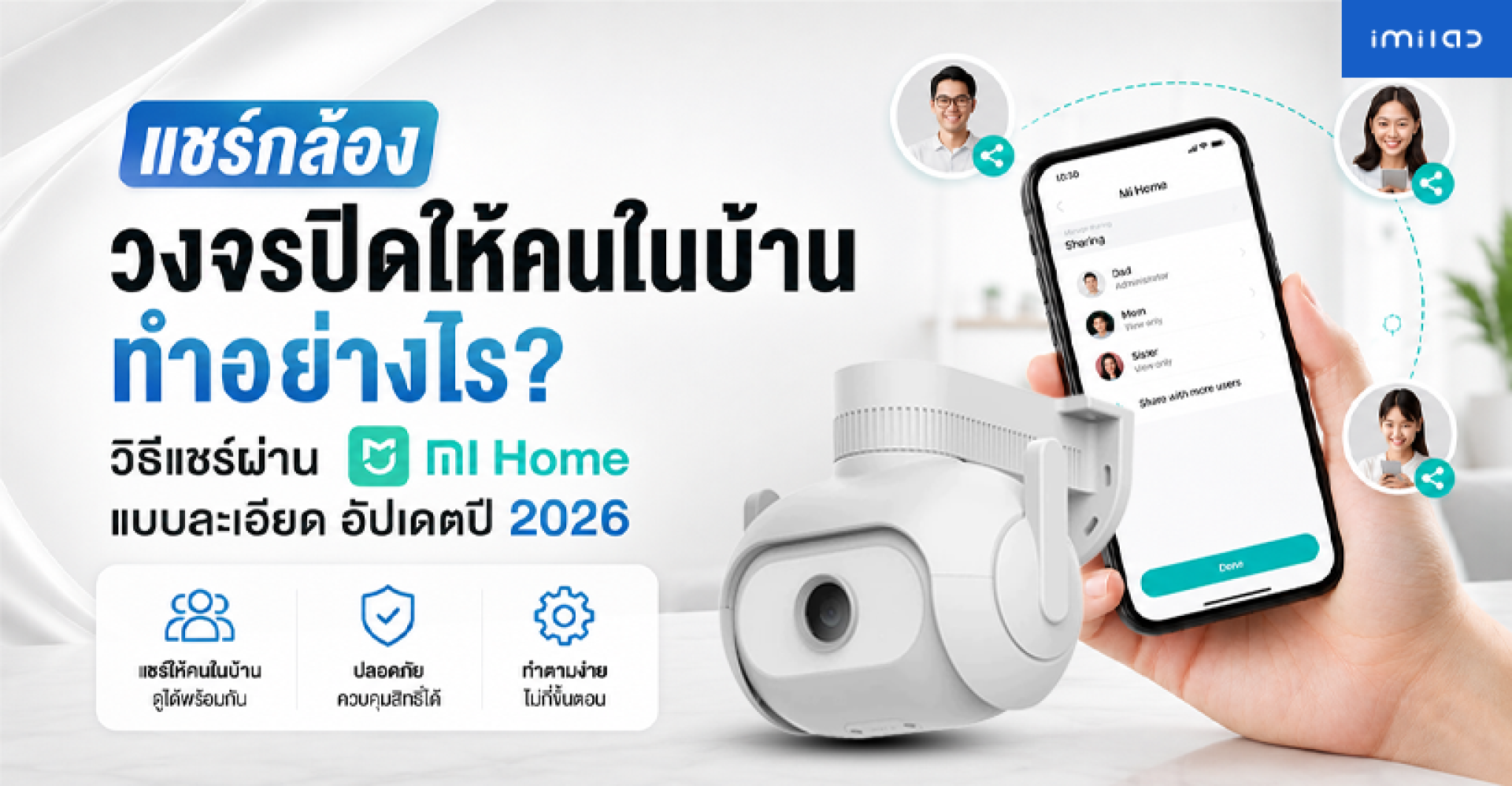
Many homeowners install security cameras to protect their homes, offices, or retail stores. However, one common question is: "Can I share my security camera with other family members?" or "Can my spouse, children, parents, or employees view the camera from their own smartphones?"
The answer is yes. If your security camera supports the Mi Home (Xiaomi Home) application, such as many IMILAB camera models, you can securely share access with other users without revealing your primary account password. Each family member can monitor live video, receive notifications, and use supported camera features based on the permissions you grant.
In this guide, you'll learn everything you need to know about sharing a security camera through Mi Home, including the requirements, permission settings, step-by-step instructions, and solutions to common sharing issues.
What Is Mi Home Device Sharing?
Mi Home includes a feature called Share Device, allowing the device owner to invite another Xiaomi account to access the same security camera.
Instead of logging in with the same account on multiple devices, each user signs in with their own Xiaomi account and receives access through an invitation from the camera owner.
This approach is both more secure and easier to manage because the owner can grant or revoke access at any time without changing the main account password.
Device Sharing is useful in many situations, including:
- Sharing cameras with family members at home
- Giving your spouse access to monitor the house
- Allowing children to check on elderly parents
- Providing store managers or employees with camera access
- Managing cameras across multiple business locations
How Many People Can Access a Shared Camera?
The number of users that can access a shared camera depends on the camera model, firmware version, and Xiaomi's current sharing policy.
Most IMILAB security cameras that work with the Mi Home application support sharing the camera with multiple Xiaomi accounts, allowing several family members to monitor the same camera simultaneously.
For the best experience, each person should create and use their own Xiaomi account rather than sharing one account among everyone. This makes permission management much easier and significantly improves account security.
What Can Shared Users Do?
Once a camera has been shared successfully, invited users can access various camera functions depending on the model and permission settings.
Common features available to shared users include:
- Watch live video remotely.
- View recorded footage stored on a MicroSD card or Cloud Storage (depending on camera support).
- Receive motion detection notifications.
- Use Two-way Audio to communicate through the camera.
- Control pan and tilt functions on supported PTZ cameras.
- Activate the built-in siren or spotlight on compatible models.
Some camera models also allow the owner to limit permissions, giving shared users either full control or view-only access for better privacy and security.
Does the Recipient Need a Xiaomi Account?
Yes.
Anyone who wants to receive a shared camera invitation must first create a Xiaomi Account (Mi Account). Registration is free and can be completed through the Mi Home app or Xiaomi's official account registration page.
After the account has been created, the camera owner can search for that account and send a sharing invitation directly through Mi Home.
Using separate Xiaomi accounts for each family member is strongly recommended because it allows you to manage permissions individually without sharing login credentials.
Requirements Before Sharing Your Security Camera
Before sending a sharing invitation, make sure the following requirements have been completed:
- Your security camera is connected to the Internet.
- The camera has already been added to the owner's Mi Home account.
- The recipient has a registered Xiaomi account.
- Both users have updated Mi Home to the latest version.
- Both accounts are using the same Server Region (such as Thailand or Singapore).
- Your camera model supports the Share Device feature.
Checking these items beforehand can prevent common problems such as invitation failures, missing devices after sharing, or unsuccessful device synchronization. In the next section, we'll walk through the complete sharing process step by step.
How to Share Your Security Camera via Mi Home: Step-by-Step Guide
Once your security camera has been successfully connected to the Mi Home app and both users have Xiaomi accounts, sharing the camera with family members is quick and straightforward using the Share Device feature.
The interface may vary slightly depending on your Android or iPhone device and the version of the Mi Home app, but the overall process remains the same.
Step 1: Open the Mi Home App
Sign in using the Xiaomi account that owns the security camera.
From the home screen, select the camera you want to share. If you have multiple smart devices connectedsuch as air purifiers, robot vacuum cleaners, or several security camerasbe sure to choose the correct device.
Step 2: Open Device Settings
Tap the Settings icon (gear icon) in the upper corner of the camera page.
Look for the sharing option, which may appear under one of the following names depending on the app version:
- Share Device
- Device Sharing
- Share with Family
- Family Sharing
If you cannot find this menu, make sure your Mi Home app has been updated to the latest version and verify that your camera model supports device sharing.
Step 3: Add the User You Want to Share With
Select Add Member or Add Shared User, then enter the Xiaomi account information of the person you want to invite.
Depending on your region, the account can usually be identified by:
- The email address registered with the Xiaomi account.
- The phone number linked to the Xiaomi account.
- The Mi Account ID (where supported).
Double-check the account information before sending the invitation. Even a small typing error may prevent the invitation from reaching the intended recipient.
Step 4: Send the Sharing Invitation
After selecting the correct account, tap Share or Send Invitation.
Mi Home will immediately send an invitation to the recipient's Xiaomi account. Once the invitation is accepted, the shared camera will automatically appear in the recipient's Mi Home application.
From that point on, both the owner and the shared user can monitor the same camera simultaneously from their own smartphones.
How Does the Recipient Accept the Invitation?
After receiving the invitation, the recipient should log in to Mi Home using the same Xiaomi account that the owner invited.
Then complete the following steps:
- Open the Mi Home application.
- Sign in with the invited Xiaomi account.
- Open the Notifications or Messages section (depending on the app version).
- Tap Accept Invitation.
- Wait a few moments while the device synchronizes.
Once synchronization is complete, the shared security camera will appear on the recipient's home screen and will be ready for use.
View-Only Access vs Full Control
Some IMILAB and Xiaomi security cameras allow the owner to manage different permission levels for shared users.
| Permission | Description |
|---|---|
| View Only | Users can watch live video and, on supported models, view playback, but cannot modify camera settings. |
| Full Control | Users can operate supported camera functions such as pan and tilt, Two-way Audio, spotlight, siren, and other available controls. |
Available permissions vary depending on the camera model, firmware version, and Mi Home app version.
How to Remove a Shared User
If you no longer want someone to access your security camera, you can revoke their permission at any time.
Follow these steps:
- Open the Mi Home app.
- Select the shared camera.
- Open Device Sharing.
- Select the user you want to remove.
- Tap Remove or Delete Sharing.
- Confirm your selection.
Once removed, that user will immediately lose access to the camera and will no longer be able to view live video or other shared features.
Best Practices for Sharing Security Cameras with Family Members
Although sharing a camera through Mi Home is convenient, it is still important to follow good security practices to protect your privacy and account.
Here are some recommendations:
- Only share your camera with people you trust.
- Do not share your primary Xiaomi account credentials.
- Let each family member use their own Xiaomi account.
- Enable Two-Factor Authentication (2FA) if available.
- Remove access immediately when someone no longer needs permission.
- Review your shared user list regularly.
By properly managing access permissions, every family member can conveniently monitor your home while maintaining a high level of privacy and account security.
Can't Share Your Security Camera in Mi Home? Here's How to Fix It
Although the Share Device feature in Mi Home is generally easy to use, some users may experience issues such as failed invitations, missing shared devices, or recipients being unable to accept the invitation.
The good news is that most of these problems can be resolved by checking a few settings. Before contacting customer support, try the troubleshooting steps below.
1. The Server Region Doesn't Match
This is by far the most common reason why camera sharing fails.
Mi Home separates devices by Server Region, such as Thailand, Singapore, Europe, or Mainland China. If the camera owner and the recipient are using different regions, the system cannot synchronize or share devices between the accounts.
How to Check Your Server Region
- Open the Mi Home app.
- Go to Profile.
- Select Settings.
- Check the Region setting.
- Make sure both accounts are using the same region.
Keep in mind that changing the Server Region may temporarily hide existing devices. In some cases, you may need to reconnect your devices after switching regions.
2. The Recipient Doesn't Have a Xiaomi Account
Every shared user must have their own Xiaomi Account (Mi Account).
If the recipient has not created an account, Mi Home cannot send or receive a sharing invitation.
Each family member should register with their own email address or phone number to simplify permission management in the future.
3. You're Using an Outdated Version of Mi Home
An older version of the Mi Home application may not fully support the latest Device Sharing features.
Before attempting to share your camera again, update Mi Home from the Apple App Store or Google Play Store to the latest available version.
4. Incorrect Xiaomi Account Information
Another common mistake is entering the wrong Xiaomi account when sending the invitation.
Verify that the email address or Xiaomi account belongs to the recipient and matches the account they use to sign in to Mi Home. Even a small typo can prevent the invitation from being delivered.
5. The Camera Is Offline
Your security camera must be connected to the Internet before it can be shared.
If the camera is offline or disconnected from Wi-Fi, the sharing process may fail, or the recipient may not be able to access the camera after accepting the invitation.
Check the following:
- The camera is online.
- Your home Internet connection is working properly.
- Your Wi-Fi router is functioning normally.
- The camera is connected to Mi Home without errors.
6. Some Camera Models Have Different Sharing Features
Most modern IMILAB and Xiaomi security cameras support Device Sharing, but the available features may vary depending on the model.
For example:
- Some models only allow shared users to view live video.
- Some models allow shared users to control pan and tilt functions.
- Some support Two-way Audio for shared users.
- Some allow shared users to activate the siren or spotlight.
Before purchasing a security camera, it's a good idea to review its supported sharing features to ensure it meets your needs.
7. Sign Out and Sign Back In
If the invitation was accepted successfully but the shared camera still doesn't appear, try refreshing your account.
- Close the Mi Home app.
- Sign out of your Xiaomi account.
- Sign back in.
- Refresh the Home screen.
In many cases, Mi Home will automatically synchronize your shared devices after logging in again.
Frequently Asked Questions (FAQ)
Can multiple people watch the same security camera at the same time?
Yes. If the camera model supports Device Sharing, multiple authorized users can view the live stream simultaneously from their own Xiaomi accounts.
Should everyone use the same Xiaomi account?
No. Using separate Xiaomi accounts is strongly recommended because it provides better security and allows the camera owner to manage each user's permissions individually.
Can shared users watch recorded footage?
It depends on the camera model, firmware version, and permission settings. Some cameras allow shared users to access playback from the MicroSD card or Cloud Storage, while others only provide live viewing.
Do I need to share the camera again if I get a new phone?
No. As long as you sign in with the same Xiaomi account that originally received the invitation, the shared camera will automatically appear in your Mi Home app.
Can I share my camera with someone who doesn't live in my house?
Yes. As long as they have a Xiaomi account and you send them an invitation through Mi Home, they can access the camera remotely. However, you should only share your camera with trusted individuals and revoke access when it is no longer needed.
Recommended IMILAB Security Cameras That Support Mi Home Device Sharing
Most IMILAB security cameras that work with the Mi Home (Xiaomi Home) application support the Share Device feature, allowing family members or authorized users to access the same camera using their own Xiaomi accounts.
Depending on the camera model, shared users may be able to watch live video, receive motion alerts, use Two-way Audio, control pan and tilt functions, and access other AI-powered features without sharing the owner's login credentials.
Recommended IMILAB Models
IMILAB EC6 Dual Pro
The IMILAB EC6 Dual Pro is an advanced outdoor dual-lens security camera featuring 3K + 3K resolution, Wi-Fi 6, and an optional LAN connection for stable networking.
It includes AI Human Detection, Vehicle Detection, Human Tracking, Two Motion Zones, Color Night Vision, Smart Siren, and Spotlight, making it an excellent choice for homes, garages, retail stores, warehouses, and parking areas where comprehensive outdoor surveillance is required.
IMILAB EC6 Panorama
The IMILAB EC6 Panorama delivers an ultra-wide 180° panoramic view with 3.5K (6MP) image quality, helping eliminate blind spots with a single camera.
Its AI Human Detection, Vehicle Detection, Human Tracking, Color Night Vision, and weather-resistant IP66 design make it ideal for monitoring front yards, driveways, parking lots, gardens, and other large outdoor spaces.
IMILAB C30 Dual
Designed for indoor use, the IMILAB C30 Dual features a dual-lens system with 3K + 3K resolution and Wi-Fi 6 connectivity.
It supports AI Human Detection, Pet Detection, abnormal sound detection, Color Night Vision, and Two-way Audio, making it perfect for monitoring children, elderly family members, pets, living rooms, or home offices.
Benefits of Sharing a Security Camera Through Mi Home
Using Mi Home's Device Sharing feature offers several advantages over sharing a single Xiaomi account among multiple users.
- No need to share your primary Xiaomi account password.
- Each family member uses their own Xiaomi account.
- User permissions can be added or removed at any time.
- Multiple authorized users can monitor the camera simultaneously.
- Ideal for homes, offices, retail stores, and small businesses.
- Provides convenient remote monitoring while maintaining account security.
Conclusion
The Share Device feature in Mi Home is one of the easiest and most secure ways to allow family members or trusted users to access your IMILAB or Xiaomi security cameras. Each user signs in with their own Xiaomi account, eliminating the need to share your primary account credentials while giving you complete control over access permissions.
Before sharing your camera, make sure both users are using the same Server Region, have updated the Mi Home application to the latest version, and that the camera is connected to the Internet. These simple checks can prevent most sharing-related issues.
If you're planning to build a smarter home security system in 2026, cameras such as the IMILAB EC6 Dual Pro, IMILAB EC6 Panorama, and IMILAB C30 Dual are excellent choices, offering AI-powered monitoring, high-resolution video, Wi-Fi 6 connectivity, and seamless Device Sharing through Mi Home.