CCTV Notifications Delayed on Your Phone? What Causes It and What Should You Check?
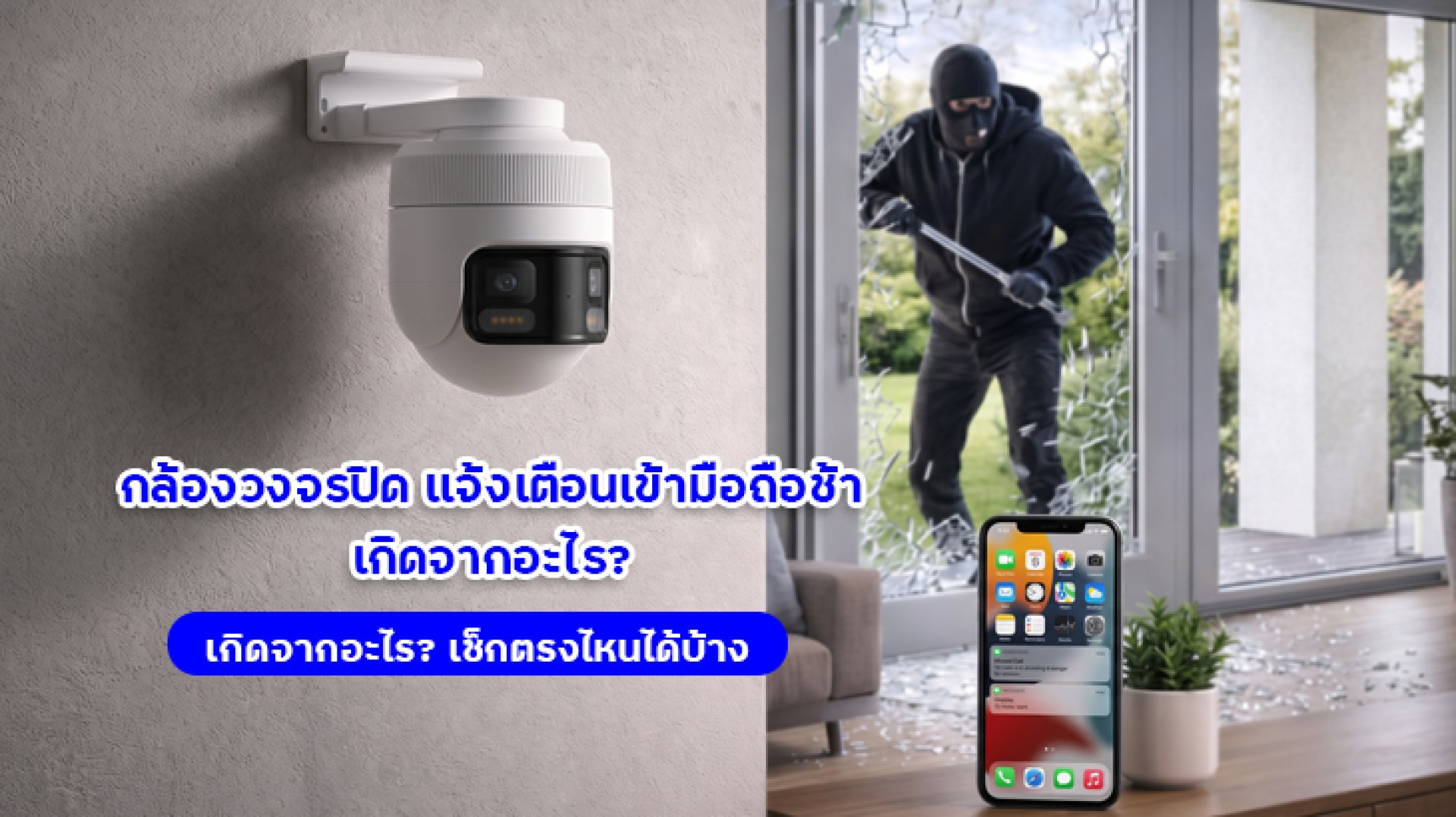
When CCTV notifications are delayed, you may not know about an important event until several minutes after it happens. Even if your security camera is online and recording normally, alerts may arrive late or fail to appear altogether. This does not necessarily mean that the camera is faulty. The problem could be related to the camera's internet connection, Mi Home app settings, your phone's notification permissions, or the camera's event detection configuration.
This guide explains the most common reasons why CCTV notifications are delayed and walks you through practical troubleshooting steps. By checking each component in order, you can narrow down whether the problem comes from the camera, the app, or your phone before resetting the device or requesting a repair.
Why Are CCTV Notifications Delayed?
Security camera notifications do not always travel directly from the camera to your phone in a single step. The camera first detects an event, sends information through the network, and communicates with the app's notification service before the alert reaches your device.
If any part of this process is delayed, the notification may arrive late. Here are the main causes to investigate:
- Unstable internet connection at the camera: The camera may take longer to send event information to the notification system.
- Unstable internet connection on your phone: Your phone may receive notifications inconsistently.
- Battery optimization restrictions: Your phone may limit the app's background activity, particularly when the screen is off or the app has not been opened for a while.
- Incorrect notification permissions: The app may not be allowed to display alerts on the lock screen or operate normally in the background.
- Incorrect detection or notification settings: The camera may detect an event without sending an alert for every occurrence.
- Outdated app or camera firmware: Software issues may affect notification delivery.
- Temporary notification service delays: The service responsible for delivering alerts to your phone may experience delays beyond your direct control.
1. Check Whether the Camera Detected and Recorded the Event
When CCTV notifications are delayed, start by opening the app you use to monitor your camera. Check the event history or available recordings for the time when the problem occurred. This helps you determine whether the camera detected the event but sent the notification late, or whether it may not have detected the event in the first place.
- The event was recorded, but the notification arrived late: Check push notification delivery, network connectivity, and the app's background activity.
- There is no recording and no notification: Check whether surveillance mode is enabled and whether event detection and notification schedules are configured correctly.
- The camera is offline or live view does not work: Check the camera's network connection first, because connectivity problems may affect both live viewing and event delivery.
Keep in mind that the absence of a recording does not always prove that the camera failed to detect an event. Recording and notification behavior varies by model, configuration, and service.
2. Check the Internet Connection on Both the Camera and Your Phone
Internet connectivity is one of the most common factors behind delayed CCTV notifications. Event information must travel from the camera through the network to the notification system before reaching your phone. If either connection is unstable, alerts may arrive late or intermittently.
How to Check the Camera's Connection
- Open the camera's live view and check whether the image loads slowly, freezes, or disconnects frequently.
- Check the Wi-Fi signal where the camera is installed, especially if it is far from the router.
- If many devices are using the same internet connection, test the camera when network usage is lower.
- If the camera uses Wi-Fi, check the router and internet connection rather than relying solely on the camera's online status.
How to Check Your Phone's Connection
- Switch between Wi-Fi and mobile data to see whether notification delivery changes.
- Check whether other apps are receiving notifications normally.
- If you use a VPN or network filtering service, consider temporarily testing without it if doing so is safe and appropriate.
If the live feed is already slow, address the network problem first. If live viewing is smooth but notifications are still delayed, continue by checking the app and phone settings.
3. Check Notification Settings in Mi Home
For cameras connected through Mi Home or Xiaomi Home, check both the app's general notification permissions and the settings for the individual camera. Allowing notifications for the app does not necessarily mean that every type of camera alert is enabled.
Menu names may vary depending on the app version, camera model, and selected region. Start with these checks:
- Open the Mi Home or Xiaomi Home app.
- Open the profile or settings menu and check the app's notification settings.
- Select the camera experiencing the problem and open its settings.
- Check whether Home Surveillance or the equivalent monitoring function is enabled, if available on your model.
- Check whether Detection Push Notifications or event notifications are enabled.
- Review the event types for which you want alerts, such as motion or human detection, if supported by the camera.
- Check notification schedules and any minimum interval between alerts.
If the notification interval is set too long, the camera may not send a new alert for every movement during that period. For example, if a three-minute interval is configured, another event occurring during that window may not generate an immediate new notification. The exact behavior depends on the camera model and its notification system.
4. Check Your Phone's Notification Permissions and Background Activity
If the camera records events successfully but notifications arrive late, especially when your phone's screen is off or the app has not been opened for some time, check your phone's battery management and background activity settings.
For Android Phones
- Open Settings and select Apps.
- Select Mi Home or Xiaomi Home.
- Open Notifications and allow notifications.
- Check lock-screen notifications, sounds, and banners according to your preferences.
- Open the app's Battery settings and check whether background activity is restricted.
- If your phone offers Background Activity or Autostart options, review the relevant settings according to the manufacturer's guidance.
For iPhones
- Open Settings and select Notifications.
- Select Mi Home or Xiaomi Home.
- Enable Allow Notifications.
- Review Lock Screen, Notification Center, and Banners settings.
- Check Focus or Do Not Disturb if either feature is enabled.
- If Low Power Mode is enabled or background activity is restricted, test whether changing the relevant settings affects notification delivery.
Menu names and available options vary by operating system and phone manufacturer. Allowing background activity may help in some cases, but it cannot eliminate delays caused by network issues or notification services.
5. Update the App and Camera Firmware
Outdated apps or camera firmware may contain software issues that affect certain functions, including notification delivery. If you have checked the network and notification settings but CCTV alerts are still delayed, check for software updates next.
- Check the app store for updates to Mi Home or Xiaomi Home.
- Open the camera's settings and check whether a firmware update is available.
- If an update is available, follow the instructions provided by the app. Avoid disconnecting the camera's power during a firmware update.
- Close and reopen the app, then test notifications again.
If you need to uninstall and reinstall the app, first check whether you have videos stored within the app that have not been backed up. Make sure you also have the correct account credentials before signing in again.
6. Test Notifications on Another Phone
Another useful troubleshooting method is to share the camera with another authorized user and check whether notifications arrive on that person's phone at the expected time. Make sure the shared account and its settings support the type of notification you are testing.
- The second phone receives alerts on time: Focus on the first phone's notification permissions, battery settings, and network connection.
- Both phones receive alerts late: Check the camera configuration, camera-side network connection, and notification service.
- Neither phone receives alerts: Check whether surveillance mode and the relevant detection settings are enabled, and whether the event appears in the recording history.
This test helps narrow down the possible cause, but it is not definitive. Different phones may have different permissions, account settings, and notification delivery conditions.
7. Restart the Camera and Router When Necessary
If the problem persists after checking the previous steps, try restarting the camera and router according to their respective manuals. This may resolve temporary connection errors. Once both devices are back online, test notification delivery again.
A factory reset should not be your first step because it may require you to configure the camera and add it to the app again. If a reset becomes necessary, consult the manual for your specific model and make sure you have the account details, network information, and other settings needed for reinstallation.
Quick Troubleshooting Table: Where Should You Check First?
| Symptom | What to Check | Recommended Action |
|---|---|---|
| Live view is slow and notifications are delayed | Camera-side or phone-side network | Test the internet connection and Wi-Fi signal. |
| Events are recorded, but alerts arrive late | Push notifications and background activity | Check notification permissions and battery optimization. |
| Only some events trigger notifications | Detection type and notification interval | Review Home Surveillance and detection settings. |
| Notifications are delayed mainly when the screen is off | Background activity and battery optimization | Check whether the app's background activity is restricted. |
| Multiple phones receive delayed notifications | Camera settings, network, or notification service | Test the network and check for service issues. |
| The problem persists after all checks | App, firmware, or device errors | Update the software and contact technical support. |
Frequently Asked Questions About Delayed CCTV Notifications
Why does my CCTV camera record footage but not send notifications to my phone?
Recording and notification delivery are separate processes. The camera may save footage to a memory card while notifications are disabled, restricted by an alert interval, or affected by app, network, or phone settings. Check the event history and notification settings separately.
Why are CCTV notifications delayed only at night?
This may be related to network conditions, detection schedules, surveillance mode, or notification settings that change according to the time of day. Check the camera's schedule and compare it with the event history before concluding that the camera is faulty.
Will keeping the Mi Home app open make notifications arrive faster?
Keeping the app open is not a guaranteed solution. It may make a difference on some phones if background activity is restricted, but the better approach is to check notification permissions, battery optimization, and network connectivity.
Do I need to reset my CCTV camera if notifications are delayed?
Not immediately. First, check the network connection, notification settings, app permissions, and software updates. If the issue persists, consider restarting the device or following the troubleshooting guidance provided by the manufacturer. A factory reset should be a last resort.
Can a CCTV camera send notifications instantly every time?
Instant delivery cannot be guaranteed in every situation. Notification speed depends on event detection, network conditions, notification intervals, and the service that delivers alerts to your phone. Configure the camera appropriately and test its performance periodically.
Conclusion: Where Should You Start When CCTV Notifications Are Delayed?
If CCTV notifications are delayed, do not assume that the camera is faulty. Start by checking whether the event was recorded, then examine the internet connection, Mi Home notification settings, phone permissions, and battery optimization. Update the app or firmware and restart the equipment only after checking the basic settings.
If notifications remain delayed on multiple phones despite correct settings and a stable network, record the event times, camera model, app version, and troubleshooting results. Contact the manufacturer's support team with this information to help them investigate the problem more efficiently.