What Is Privacy Masking in CCTV Cameras? How Can It Hide Private Areas?
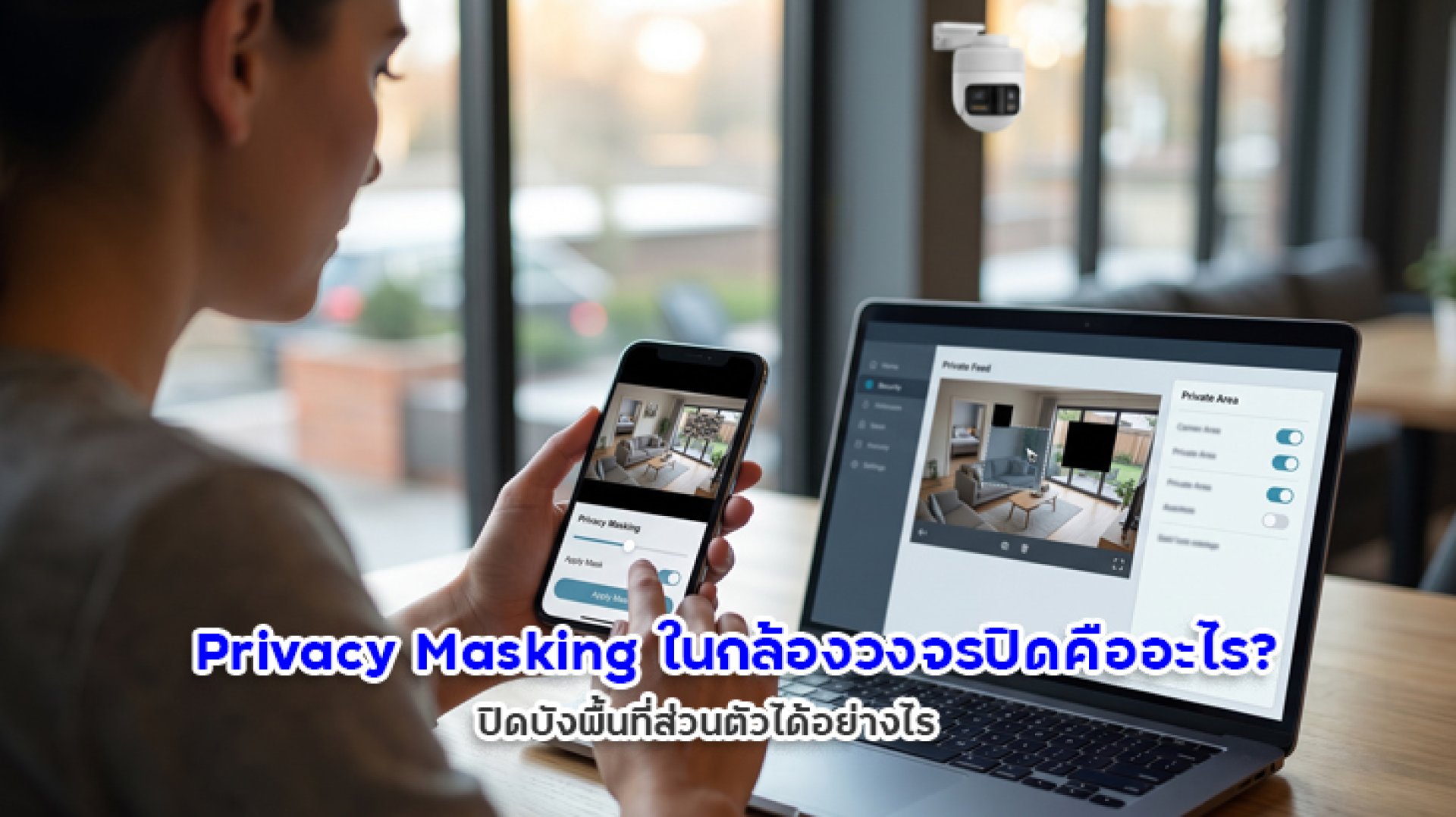
CCTV Privacy Masking is a feature that hides selected areas within a security camera's view, such as a neighbor's windows, a private doorway, or other areas that do not need to be monitored. It allows users to monitor important locations while reducing the amount of unnecessary visual information captured. However, not every security camera supports this feature, and the way Privacy Masking works varies by manufacturer and model.
For example, a camera installed at the front of a house may capture both the entrance gate and a neighbor's windows. Adjusting the camera angle may help, but some areas may still be difficult to avoid. If the camera supports Privacy Masking, you may be able to cover selected parts of the image while keeping the important areas visible. Before relying on this feature, check whether it applies only to live view or also to recorded video and exported footage.
What Is CCTV Privacy Masking?
Privacy Masking is a security camera feature that lets users define specific areas within the camera's field of view and cover them with a solid color, a pixelated pattern, or another supported visual mask. Its purpose is to limit visibility into areas that do not need to be monitored.
On some systems, users can select an area directly on a preview image and configure the portion they want to hide. The available settings, number of masks, menu names, and supported masking methods depend on the camera and its management software.
Privacy Masking is not a universal feature that every CCTV camera must include. If you are considering an IMILAB camera or another brand, check the specifications and user manual for the exact model before purchasing.
Which Private Areas Can Privacy Masking Help Protect?
Privacy Masking can be useful when a camera needs to cover an important security area but should avoid displaying unnecessary details elsewhere. Common examples include:
- Neighboring windows and doorways: Reduce the capture of private areas belonging to other households when they fall within the camera's view.
- Areas inside your home that do not need monitoring: Hide selected parts of the image if the camera supports this function.
- Areas outside the intended monitoring boundary: Reduce the visibility of locations that are unrelated to the security purpose.
- Unnecessary areas around the property: Limit selected portions of the image while keeping entrances and other important locations visible.
However, masking is not a substitute for choosing an appropriate camera position. Whenever possible, start by pointing the camera toward the areas you actually need to monitor. Privacy Masking can provide an additional option when some unwanted areas cannot reasonably be excluded from the field of view.
Privacy Masking vs. Adjusting the Camera Angle
Both methods can help reduce the capture of unnecessary areas, but they work differently. Adjusting the camera angle changes what the camera physically sees, while Privacy Masking covers selected portions of the image according to the system's capabilities.
| Comparison | Privacy Masking | Camera Angle Adjustment |
|---|---|---|
| How it works | Covers selected areas within the image. | Changes the direction or field of view. |
| Requires a specific feature | Yes. The camera or video management system must support it. | Usually possible by adjusting the camera's position or direction. |
| Helps reduce views of neighboring areas | Yes, within the configured mask and supported functions. | Yes, by avoiding those areas in the camera's field of view. |
| Main limitation | Coverage and recording behavior vary by system. | Adjusting the view may exclude important security areas. |
If you use a PTZ or other movable camera, check whether the privacy mask remains correctly positioned when the camera pans, tilts, or zooms. Some systems adjust masks to follow fixed areas, while others may have different limitations when the viewing angle changes.
Does Privacy Masking Hide Areas in Both Live View and Recorded Video?
It depends on the camera and the system being used. Some systems apply Privacy Masking to live streams, recorded footage, snapshots, and exported files. Others may behave differently. You should never assume that an area hidden on the live-view screen is automatically hidden in every recording.
Before relying on Privacy Masking, check the following:
- Live view: Is the selected area hidden when viewing the camera in real time?
- Playback: Does the mask remain visible when reviewing recorded footage?
- Exported video: Is the area still hidden after downloading or exporting a clip?
- Snapshots: Does the mask apply to still images captured through the app?
- Configuration changes: If you later edit or remove a mask, what happens to previously recorded footage?
If privacy protection is a key requirement, test the feature before using the camera continuously. This is especially important if you may need to share recordings with another person or export footage as evidence.
How to Set Up Privacy Masking on a CCTV Camera
The exact procedure depends on the camera brand and model. If your device supports Privacy Masking, the following general steps can help you get started.
- Open the camera app or management system: Sign in using an account authorized to change the device settings.
- Select the correct camera: Make sure you are configuring the camera installed in the area you want to adjust.
- Look for Privacy Masking or Privacy Zone: Menu names vary by manufacturer, and some models may not include this feature.
- Define the area to hide: If supported, select or draw the portion of the image you want to cover.
- Save the settings: Follow the on-screen instructions to apply the configuration.
- Verify live view and playback: Confirm that the intended area is hidden. Test exported footage as well if necessary.
These are general instructions, not model-specific steps for every IMILAB camera. If you cannot find Privacy Masking in the Mi Home or Xiaomi Home app, do not assume that the camera is defective. Your model may not support the feature. Check the user manual or contact the manufacturer's support team for confirmation.
What If Your CCTV Camera Does Not Support Privacy Masking?
If your camera does not include a privacy mask function, you can still reduce unnecessary image capture by choosing a more suitable installation position and camera angle.
- Adjust the camera angle: Focus on your own property and avoid pointing the camera toward another household's private areas.
- Choose a different mounting position: Find a position that captures entrances and other important locations without unnecessarily recording unrelated areas.
- Review detection zones: If supported, define the areas used for motion detection to reduce alerts from irrelevant locations. Remember that a detection zone does not necessarily hide those areas from live view or recorded video.
- Check features before purchasing: If you specifically need parts of the image to be hidden, confirm that the camera supports Privacy Masking and understand which video outputs are affected.
It is important to distinguish Privacy Masking from a Detection Zone. A detection zone generally determines where the camera analyzes movement or other events. It does not necessarily conceal the remaining parts of the image.
Is CCTV Privacy Masking Related to PDPA and Privacy Regulations?
Privacy Masking can be one tool for reducing unnecessary capture of private areas, but enabling it does not automatically make every camera installation compliant with applicable privacy laws. Users should still consider the purpose of monitoring, camera placement, the scope of the footage, and how recorded information is handled.
For a camera installed at the front of a home, start by pointing it toward the areas needed for security and avoiding unnecessary views into other people's homes or private spaces. If some unwanted areas cannot be excluded entirely, consider adjusting the camera's field of view or using a supported privacy masking feature.
Whether a particular installation or use of recorded footage complies with the law depends on the specific circumstances and applicable regulations. Privacy Masking alone is not enough to determine legal compliance.
What Should You Check Before Buying a CCTV Camera with Privacy Masking?
If Privacy Masking is an important requirement, do not rely only on a general claim that a camera has privacy features. Check the actual capabilities against your intended use.
- Does the exact model support Privacy Masking or Privacy Zones?
- How many areas can be masked, and can you adjust their size and shape?
- Does masking apply to live view, recorded video, snapshots, and exported files?
- If the camera supports PTZ or motorized movement, does the mask remain correctly positioned as the camera moves?
- Can you configure the feature directly through the app, or is an additional recorder or management system required?
- Does the manufacturer provide a manual or support documentation explaining how the feature works?
For IMILAB cameras, check the specifications for each model individually. Using the same Mi Home or Xiaomi Home app does not mean that every camera supports the same privacy features.
Frequently Asked Questions About Privacy Masking
Are Privacy Masking and Privacy Zone the same thing?
These terms may refer to related privacy features, but their exact meanings depend on the manufacturer. Some systems use Privacy Masking to describe covering selected areas in the image, while Privacy Zone may refer to a different function. Always check the feature description in the product manual.
Does Privacy Masking stop the camera from recording?
Not necessarily. Some systems hide selected areas in the displayed or recorded video, while other features, such as Detection Zones, only determine where events are detected. Check the documentation to confirm whether the feature actually masks recorded footage or only changes detection behavior.
Do all IMILAB cameras support Privacy Masking?
You should not assume that every IMILAB model supports this feature. Check the specifications, user manual, and available settings for the exact model. If the information is unclear, contact the manufacturer or seller before purchasing.
Can I protect privacy if my camera does not support Privacy Masking?
Yes. You can reduce unnecessary image capture by adjusting the camera angle, choosing a suitable mounting position, and using other supported features. However, configuring a detection zone is not the same as hiding an area in recorded video.
Conclusion: How Does Privacy Masking Help Protect Privacy?
CCTV Privacy Masking is a feature that covers selected parts of a camera's image to limit visibility into areas that do not need monitoring. It can be useful when you need to keep important security areas in view while reducing the capture of unnecessary details, such as neighboring windows or other private spaces.
However, the feature varies by system, including how masks work in live view, recorded footage, and exported files. If your camera does not support Privacy Masking, start by adjusting the camera's angle and installation position. If you are considering an IMILAB camera, verify the features of the exact model to make sure it supports your requirements.
References
- Axis Communications: Support for Privacy An overview of privacy masking technology in video surveillance.
- Axis Communications: Privacy Masks Technical documentation on masking selected areas in live streams, recordings, and snapshots.
- Hikvision Support: How Do I Set Up a Privacy Mask? An example of privacy mask configuration.
- IMILAB Official FAQ Product and camera support information.