What CCTV Software Is Available? How to Choose the Right Mobile App and PC Viewing Program
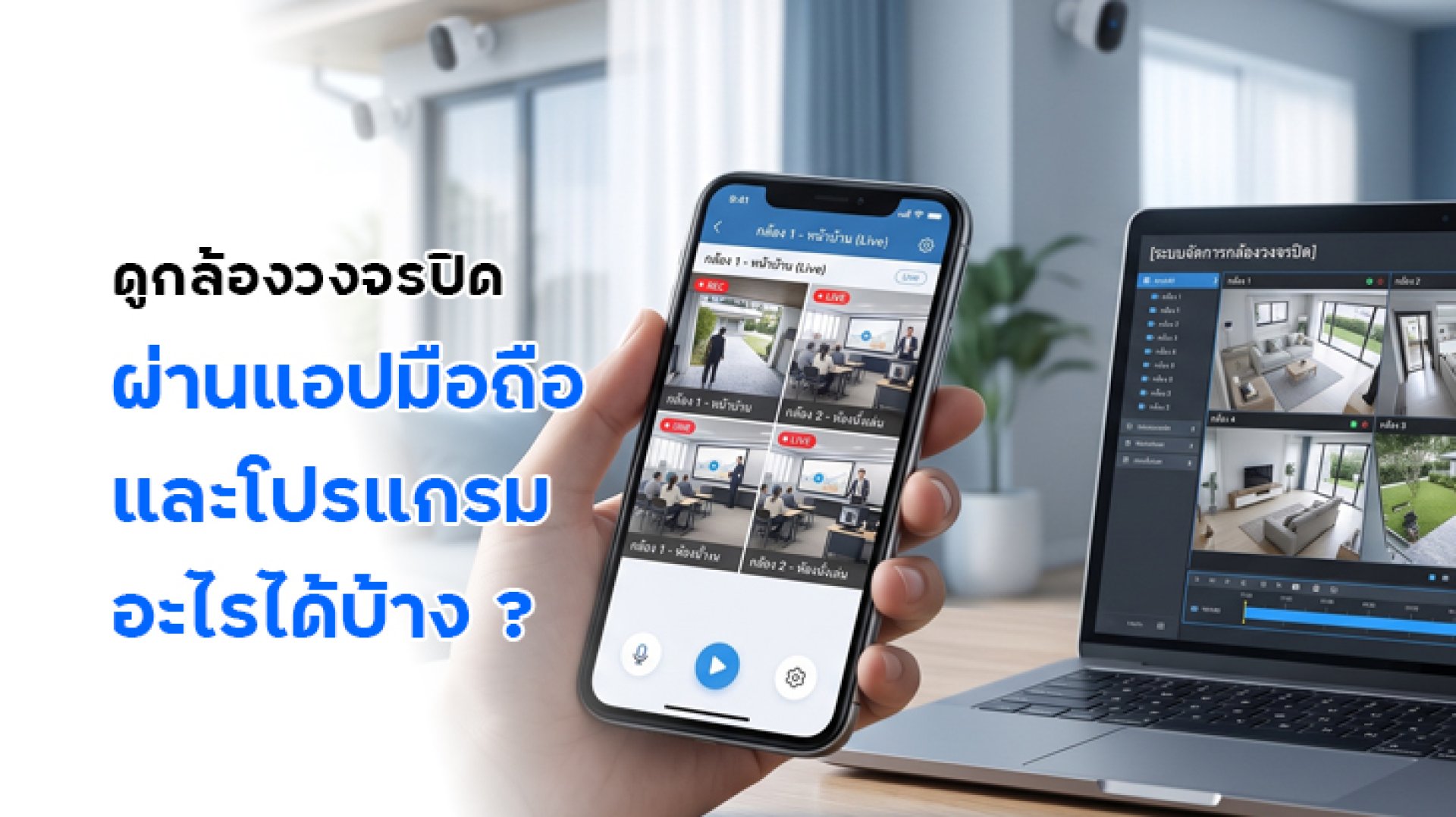
Have you purchased a security camera but are unsure which software to use to view its footage on your smartphone or computer? This is an important consideration because CCTV software is not a one-size-fits-all solution. Some cameras require a dedicated app from the manufacturer, while others can be viewed through PC software or connected to third-party applications using standards such as RTSP or ONVIF.
Choosing incompatible software can lead to problems such as being unable to add your camera, view live footage, or access recorded videos. This guide explains the main types of CCTV software, how to choose mobile apps and PC viewing programs, and what to check before installing them.
What Are the Main Types of CCTV Software?
Before choosing CCTV software, it is important to understand that different programs are designed for different purposes. Not every application works with every camera brand or model. In general, CCTV software can be divided into three main categories.
1. Mobile CCTV Apps
Mobile CCTV apps are designed for smartphones and tablets. They are ideal for users who want to monitor their cameras remotely through an internet connection. Most are available for Android and iOS, but you should check whether the app supports your specific camera model.
Common features of CCTV mobile apps include:
- Live View: Watch real-time footage from your camera.
- Playback: Review previously recorded videos.
- Motion Detection: Receive notifications when movement is detected.
- Two-way Audio: Communicate through cameras that support this feature.
- Device Sharing: Share camera access with family members.
- Camera Settings: Adjust resolution, notifications, and other model-specific settings.
The main advantage is convenience. You do not need to keep a computer running to monitor your camera. However, different manufacturers use their own account systems and connection methods, so one brand's app cannot necessarily replace another brand's app.
2. CCTV Viewing Software for Computers (PC Software)
PC software is designed for Windows or macOS computers. It is useful for homes, shops, and offices that need a larger viewing screen or want to monitor multiple cameras simultaneously.
Depending on the software and camera compatibility, common features may include:
- Viewing live footage from multiple cameras.
- Displaying several camera feeds in one screen layout.
- Playing recorded videos and searching by time.
- Saving video footage or snapshots to a computer.
- Managing devices and configuring connections.
However, installing PC software does not guarantee compatibility with every camera. Some programs only support cameras or recording devices from a particular manufacturer. Others require RTSP or ONVIF support to retrieve video streams from compatible cameras.
3. Video Management Software (VMS)
VMS, or Video Management Software, is designed to manage larger CCTV systems. It is particularly useful for businesses, retail chains, warehouses, and organizations with multiple cameras across different locations.
In addition to live viewing and playback, some VMS platforms support user management, access permissions, video search, and centralized camera administration.
The advantage is that VMS can organize large camera systems more efficiently. However, setup and operation may be more complicated than using a standard mobile app. You should also verify camera compatibility before investing in a VMS solution.
How to Choose a Mobile CCTV App That Matches Your Camera
If you mainly want to monitor your security camera through a smartphone, the easiest approach is to start with the app recommended in the camera's user manual or product page. This is usually the software designed to work directly with that model.
Examples of mobile camera app ecosystems include:
IMILAB and Xiaomi Home (Mi Home)
Some IMILAB camera models support Xiaomi Home, also known as Mi Home. However, you should not assume that every IMILAB camera uses the same app. Compatibility depends on the specific model and the market in which it is sold.
Before installing an app, check the following:
- The app name specified in the camera's user manual.
- Whether the app supports your Android or iOS version.
- Which country or region should be selected in the app.
- Whether live viewing and playback are supported.
- Whether the camera supports sharing access with other accounts.
If your IMILAB camera supports Xiaomi Home, download the app from the App Store or Google Play and follow the manufacturer's setup instructions. Selecting the wrong region or using an incompatible app may prevent the camera from appearing during device setup.
Dedicated Apps from CCTV Manufacturers
Many security camera brands provide their own mobile apps, allowing users to manage compatible devices through a single account. Depending on the manufacturer, these apps may offer notifications, cloud recording, camera sharing, and motion detection settings.
The main advantage is that the app is designed for the manufacturer's camera ecosystem, so setup is often more straightforward. However, check whether the app is still receiving updates, supports your smartphone's operating system, and includes the features you need.
What CCTV Software Can You Use on a Computer?
If you want to view camera footage on a computer, you can choose between manufacturer-provided software and third-party applications. Before downloading CCTV software, however, check whether your camera supports external video streaming or connections to third-party programs.
1. Software from the Camera or Recorder Manufacturer
This is generally the first option worth checking because the software is designed to work with the manufacturer's own devices. Some manufacturers provide Windows applications or web-based platforms for camera management.
The advantage is that manufacturer software may support device-specific features more completely, including playback, camera settings, and user account management. However, you must confirm that the software actually supports your camera model.
2. VLC Media Player
VLC is a multimedia player that can also open network video streams. This means it may be used to view footage from certain CCTV cameras that support RTSP.
To use VLC, the camera must provide an RTSP stream, and you need the correct streaming URL. You may also need the camera's username and password if authentication is required.
However, VLC is primarily a media player, not a complete CCTV management system. It may not support features such as motion notifications, camera configuration, or playback directly from the camera's recording system.
3. Third-Party VMS Software
If you want to monitor multiple cameras from a single computer, consider VMS software that supports compatible camera connection standards such as ONVIF or RTSP.
Before choosing a program, check whether it supports your computer's operating system, the number of cameras you need, and the recording features you require. Also review licensing conditions and costs, as some programs limit the number of cameras available in their free versions.
How Are RTSP and ONVIF Related to CCTV Software?
This is an important topic for users who want to connect their cameras to third-party software. RTSP and ONVIF are standards that help compatible cameras communicate with other software and devices over a network. However, they do not perform exactly the same functions.
What Is RTSP?
RTSP (Real Time Streaming Protocol) is a protocol used to control streaming media over a network. In CCTV systems, it is commonly used to retrieve video streams from cameras and display them in compatible applications such as VLC or VMS software.
However, some cameras do not support RTSP, or may require the feature to be enabled before use. RTSP also does not automatically provide access to every camera function, such as motion detection settings or user management.
What Is ONVIF?
ONVIF is a standard designed to improve interoperability between network security devices, including IP cameras and recording systems. It allows products from different manufacturers to communicate with one another within the limits of their supported features.
However, ONVIF compatibility does not guarantee that every function will work across all devices. Actual compatibility depends on the camera model, supported ONVIF profiles, and how each device implements the standard.
For a more detailed explanation, read our articles about RTSP vs ONVIF: What Is the Difference? and What Is ONVIF? to learn more about connecting cameras to external systems.
Why Can't You View Your CCTV Camera After Installing the Software?
Successfully installing an app or program does not guarantee that the camera will connect immediately. If the software cannot detect your camera or display its footage, check these possible causes first.
1. You Are Using an Incompatible App
Some cameras require a specific manufacturer app. If you install the wrong application, the camera may not appear during device discovery. Check the app name in the camera's manual or the QR code supplied by the manufacturer.
2. The Camera and Smartphone Are Not Connected to a Compatible Network
Initial camera setup may require a specific Wi-Fi network or frequency band. If your network does not meet the camera's requirements, the connection process may fail.
3. The Account or Region Settings Are Incorrect
Some camera ecosystems link devices to a specific user account or selected region. If you sign in with the wrong account or select an incompatible server region, previously added cameras may not appear.
4. The Camera Does Not Support Third-Party Software
If you want to use VLC or VMS but your camera does not support the required RTSP or ONVIF features, the software may be unable to connect. Check the camera specifications before selecting third-party applications.
5. Access Permissions or Network Settings Are Incorrect
Check whether your account has permission to view the camera, whether the camera is online, and whether network settings allow the connection. If accessing the camera remotely, use a connection method supported by the manufacturer. Avoid exposing the camera directly to the public internet through unnecessary port forwarding.
How to Choose the Right CCTV Software for Your Needs
You do not always need software with the most features. The best choice depends on how you use your camera and which connection methods it supports.
| Usage Scenario | Recommended Software | What to Check |
|---|---|---|
| Viewing cameras mainly on a smartphone | Manufacturer's mobile app | Camera model and supported operating systems |
| Viewing cameras on a computer | Manufacturer's PC software | Whether the software supports your camera model |
| Opening a camera video stream | VLC Media Player | Whether the camera supports RTSP |
| Combining cameras from different brands | Compatible VMS software | RTSP / ONVIF compatibility |
| Managing a large camera system | VMS or manufacturer platform | Camera capacity, recording features, and licensing |
For typical home users, the manufacturer's mobile app is usually the easiest option because it requires less additional configuration. If you want to view footage on a computer or combine cameras from different models, check RTSP and ONVIF compatibility before choosing your software.
Security Tips When Using CCTV Software
CCTV software is not just about convenient viewing. It also involves privacy and the security of footage recorded inside your home. Keep these precautions in mind:
- Download apps and programs from the manufacturer's official website or trusted app stores.
- Use strong passwords that are not shared with other online services.
- Enable two-factor authentication if the system supports it.
- Review which accounts have access to your cameras and remove unnecessary permissions.
- Keep apps, camera firmware, and operating systems updated.
- Do not share camera streaming URLs or passwords unnecessarily.
If family members need access to your cameras, use the app's device-sharing feature rather than sharing your primary account password. This makes it easier to manage individual access permissions.
Frequently Asked Questions About CCTV Software (FAQ)
Can CCTV software work with every camera brand?
Not necessarily. Manufacturer apps usually support cameras within their own ecosystems. Third-party software may support multiple brands if the cameras and software share compatible connection standards such as RTSP or ONVIF.
Can I view CCTV footage on a computer?
Yes. You can use manufacturer-provided PC software or compatible third-party applications such as VMS software or programs that support RTSP. However, some cameras are designed primarily for mobile app use.
Can VLC be used to view CCTV cameras?
Yes, if the camera supports RTSP and you have the correct streaming URL. However, VLC is a media player rather than a complete CCTV management system, so it may not support camera configuration or direct playback from the camera's recording system.
Can every IMILAB camera use Xiaomi Home?
You should not assume that every model is compatible. Check the app name and compatibility information in the user manual or product page for your specific IMILAB camera before installing the app.
If I already use a mobile app, do I need to install PC software?
No, not for most home users. If your mobile app provides all the live viewing and playback features you need, additional PC software is unnecessary. However, PC software can be useful if you want to monitor multiple cameras on a larger screen or manage a larger camera system.
Conclusion: Choose CCTV Software Based on Your Camera Model
Choosing the right CCTV software should start with checking your camera model and its supported connection methods, rather than simply downloading an app recommended by someone else. If you want to monitor your camera on a smartphone, use the app specified by the manufacturer. If you want to view footage on a computer, check whether the camera has compatible PC software or supports RTSP and ONVIF connections.
For IMILAB cameras, always check app compatibility for each specific model, especially if you plan to use Xiaomi Home or Mi Home. Compatibility can vary between models. Choosing the correct software will make live viewing, video playback, and camera management easier while reducing unnecessary connection problems.